Tampilkan postingan dengan label Linux. Tampilkan semua postingan

Selasa, 20 Maret 2012

UBUNTU SERVER 11.10 32-bit & 64-bit (Latest Version)


UBUNTU SERVER 32-bit 64-bit


Fast, secure, deploy-anywhere technology for fast-moving companies

Secure, fast and powerful, Ubuntu helps you make the most of your infrastructure. Whether you want to deploy a web farm or deploy a cloud, Ubuntu Server supports the most popular hardware and software.

Our regular release cycle helps you keep pace with the latest tech developments. And our lean initial install, with thousands of easy-to-find packages, makes it a great solution for simple deployment and management at scale.


Password : ripsnorter
read more...

Rabu, 14 Maret 2012

Upgrade Linux Mint 10 ke 11

Cara Upgrade Linux Mint 10 ke 11 bisa dilakukan dengan 2 cara, yaitu Fresh Upgrade dan juga melalui terminal atau APT. Berbeda dengan Upgrade Ubuntu 10.10 ke 11.04 yang bisa secara offline menggunakan Alternate CD/DVD, Upgrade Linux Mint 10 ke 11 membutuhkan koneksi internet. Berikut ini cara Upgrade Linux Mint 10 ke 11:

linux mint 11 Upgrade Linux Mint 10 ke 11

Upgrade Linux Mint 10 ke 11 dengan cara Fresh Upgrade

Fresh Upgrade adalah Upgrade Linux Mint 10 ke 11 dengan cara fresh install Linux Mint 11 Katya, namun dengan tambahan aplikasi atau software yang sebelumnya terpasang dalam Linux Mint 10 Julia, yang telah anda backup menggunakan Backup tool. Berikut ini cara upgrade Linux Mint 10 ke 11 dengan cara Fresh Upgrade:
1. Pada Linux Mint 10 Julia, backup software dan file (jika memang file yang anda simpan pada Linux Mint 10 Julia penting) menggunakan Backup tool. Anda bisa memilih Backup Files untuk backup file yang ada pada folder home Linux Mint 10 Julia, serta backup Software untuk membuat list software yang telah terpasang pada Linux Mint 10 Julia yang ingin anda pasang pada Linux Mint 11 Katya. Pilih partisi hardisk lain sebagai penyimpanan dari hasil backup tersebut.
2. Install Linux Mint 11 Katya yang telah anda unduh sebelumnya.
3. Update Linux Mint 11 Katya anda terlebih dahulu dengan perintah
sudo apt-get update && sudo apt-get upgrade
4. Restore backup file dan juga software list menggunakan Backup Tool. Sebagai catatan, beberapa software yang sebelumnya secara default ada pada Linux Mint 10 Julia seperti Rhythm Music Box, Gwiber, dan aplikasi default lain yang dihilangkan pada Linux Mint 11 Katya, akan ikut terpasang bersama aplikasi tambahan yang lain yang anda tambahkan.
5. Setelah proses Upgrade Linux Mint 10 ke 11 selesai, maka anda bisa menggunakan secara normal.

Upgrade Linux Mint 10 ke 11 melalui APT

Cara Upgrade Linux Mint 10 ke 11 melalui APT adalah Upgrade Linux Mint 10 ke 11 tanpa harus fresh install Linux Mint 11 Katya terlebih dahulu. Berikut ini cara Upgrade Linux Mint 10 ke 11 melalui APT:
1. Pastikan anda backup file dan juga software yang ada pada Linux Mint 10 Julia anda menggunakan Backup Tool, serta menyimpannya pada partisi lain di harddisk laptop, komputer, atau notebook anda. Hal ini untuk mengantisipasi terjadinya error pada saat upgrade. Pastikan juga anda memiliki file ISO Linux Mint 11 Katya sebagai alternatif upgrade menggunakan cara fresh upgrade.
2. Buka terminal Linux Mint anda, kemudian gunakan perintah
sudo bash
3. Edit file sources.list menggunakan text editor kesayangan anda. Sebagai contoh, saya menggunakan gedit:
gedit /etc/apt/sources.list
atau menggunakan Vi
vi /etc/apt/sources.list
Ganti isi sources.list pada Linux Mint 10 Julia:
deb http://linuxmint.idrepo.or.id/packages/ julia main upstream import
deb http://archive.ubuntu.com/ubuntu/ maverick main restricted universe multiverse
deb http://archive.ubuntu.com/ubuntu/ maverick-updates main restricted universe multiverse
deb http://security.ubuntu.com/ubuntu/ maverick-security main restricted universe multiverse
deb http://archive.canonical.com/ubuntu/ maverick partner
deb http://packages.medibuntu.org/ maverick free non-free
# deb http://archive.getdeb.net/ubuntu maverick-getdeb apps
# deb http://archive.getdeb.net/ubuntu maverick-getdeb games
Dengan berikut ini:
deb http://linuxmint.idrepo.or.id/packages/ katya main upstream import
deb http://archive.ubuntu.com/ubuntu/ natty main restricted universe multiverse
deb http://archive.ubuntu.com/ubuntu/ natty-updates main restricted universe multiverse
deb http://security.ubuntu.com/ubuntu/ natty-security main restricted universe multiverse
deb http://archive.canonical.com/ubuntu/ natty partner
deb http://extras.ubuntu.com/ubuntu natty main
deb http://packages.medibuntu.org/ natty free non-free
# deb http://archive.getdeb.net/ubuntu natty-getdeb apps
# deb http://archive.getdeb.net/ubuntu natty-getdeb games
4. Lanjutkan dengan perintah
apt-get update
Untuk mengupdate file yang ada pada package manager dengan repositroi baru. Lanjut dengan perintah
apt-get dist-upgrade
Ikuti perintah yang ada.
5. Setelah dist-upgrade selesai, lanjutkan dengan
apt-get upgrade
6. Setelah proses Upgrade selesai, restart laptop, komputer, atau notebook anda. Jika proses Upgrade Linux Mint 10 ke 11 berjalan dengan bak, maka setelah restart, anda bisa menggunakan Linux Mint 11 Katya dengan baik.
Sebagai catatan tambahan, untuk proses Upgrade Linux Mint 10 ke 11 melalui APT, anda harus memiliki koneksi internet yang cukup cepat. Hal ini dikarenakan jika menggunakan Upgrade melalui APT, maka file yang harus anda unduh cukup besar.
Semoga catatan tentang cara Upgrade Linux Mint 10 ke 11 ini bisa bermanfaat bagi anda. Selamat mencoba, dan semoga bisa berjalan dengan lancar.
read more...

Kamis, 08 Maret 2012

Cara Mudah Install (Ubuntu) Linux di Flash Disk Menggunakan Universal USB Installer

Cara Mudah Install (Ubuntu) Linux di Flash Disk Menggunakan Universal USB Installer ImageIngin mencoba menggunakan sistem operasi linux tetapi masih ragu akan kompatibilitas dengan dirver, software dan lain-lain? Linux live CD adalah solusinya. Dengan live CD anda bisa mencoba menggunakan Linux tanpa harus menginstallnya di komputer. Tetapi, jika masih penasaran dengan Linux, anda bisa mencoba menginstallnya di USB flash disk.
Dengan menginstallnya di dalam flash disk, anda punya banyak kesempatan untuk bereksperimen tanpa harus mengganggu sistem operasi yang sudah ada di komputer/notebook. Pada contoh kali ini, yang kami lakukan adalah mencoba menginstall Ubuntu Linux di flash disk.
Sebelum mencoba trik ini, ada beberapa hal yang perlu anda siapkan:
  • Komputer atau notebook dengan OS windows sebagai alat untuk mengkonversi Ubuntu ke flash disk.
  • File image Ubuntu yang berformat ISO.
  • Flash disk dengan kapasitas minimal 2 GB.
  • Universal USB Installer sebagai aplikasi untuk mengkonversi Ubuntu ke flash disk.
Jika persiapan sudah selesai, ikuti petunjuk di bawah ini:
1) Jika belum punya file ISO dari Ubuntu, download di sini http://www.ubuntu.com/download/ubuntu/download (Kami menggunakan versi 10.04 karena versi ini adalah Long-term support).
2) Download Universal USB Installer di http://www.pendrivelinux.com/downloads/Universal-USB-Installer/Universal-USB-Installer-1.8.6.8.exe kemudian jalankan aplikasi tersebut.

Cara Mudah Install (Ubuntu) Linux di Flash Disk Menggunakan Universal USB Installer Image

3) Kemudian pada bagiam menu dropdown pada aplikasi ini, pilih sistem operasi Linux yang akan diinstall. Karena menggunakan Ubuntu, maka saya memilih Ubuntu pada bagian ini.
4) Pada bagian Browse, pilih lokasi dari file ISO yang ingin diinstall ke dalam flash disk.
5) Pada drodown menu menu bagian bawah, pilih drive dari flash disk yang ingin ditempati Ubuntu Linux. Pilih Erase content jika anda ingin menghapus semua file yang ada pada flash disk.


Cara Mudah Install (Ubuntu) Linux di Flash Disk Menggunakan Universal USB Installer Image

6) Pada bagian “slider” dari kapasitas file, kita bisa memilih berapa kapasitas yang akan digunakan untuk Ubuntu. Sesuaikan dengan kebutuhan anda.
7) Terakhir klik tombol Create dan tunggu sampa semua proses selesai.
Setelah semua proses selesai, sekarang coba restart komputer/notebook anda dan booting melalui flash disk yang baru saja diisi file dari Ubuntu. Tunggu sampai beberapa saat, sampai anda bisa melihat Ubuntu tampil di desktop.
read more...

Jumat, 10 Februari 2012

Video Editing For LINUX


LiVES - The Linux* Video Editing System

LiVES is a Video Editing System. It is designed to be simple to use, yet powerful. It is small in size, yet has many advanced features.

LiVES mixes realtime video performance and non-linear editing in one application. It lest you start editing and making video right away, without having to worry about formats, frame sizes, or framerates. It is a very flexible tool which can be used by both VJ's and video editors - mix and switch clips from the keyboard, trim and edit your clips, and bring them together using the multitrack timeline.

http://lives.sourceforge.net


Open Movie Editor is a free and open source video editing program, designed for basic movie making capabilities. It aims do be powerful enough for the amateur movie artist, yet easy to use.

http://www.openmovieeditor.org/
read more...

Games For LINUX


foobillard - Permainan Billard OpenGL​

FooBillard is an attempt to create a free OpenGL-billard for Linux. FooBillard is still under development but the main physics is implemented.

http://foobillard.sourceforge.net


nexuiz - Multiplayer, deathmatch oriented first person shooter​

Nexuiz is a fast-paced, chaotic, and intense multiplayer first person shooter, focused on providing basic, old style deathmatches.

http://www.nexuiz.com
Frets on Fire


Frets on Fire is a game of musical skill and fast fingers. The aim of the game is to play guitar with the keyboard as accurately as possible.
Features
Playing pose

* Unique inverted keyboard gameplay style
* Support for guitar controllers and generic joysticks
* Includes a song editor for making your own tunes
* Compete with others on the World Charts
* Hundreds of songs composed by the community
* Supports importing Guitar Hero™ I and Guitar Hero™ II songs
* Multiplatform; runs on Windows™, Linux®, Mac OS X™ and FreeBSD®
* Open source, full Python source code available

read more...

blender - Paket pemodelan/rendering/animasi 3D yang berfungsi penuh​


blender - Paket pemodelan/rendering/animasi 3D yang berfungsi penuh​

Blender is the in-house software of a high quality animation studio. It has proven to be an extremely fast and versatile design instrument. The software has a personal touch, offering a unique approach to the world of three dimensions. Blender can be used to create TV commercials, to make technical visualizations or business graphics, to do some morphing, or to design user interfaces. Developers can easily build and manage complex environments. The renderer is versatile and extremely fast. All basic animation principles (curves and keys) are implemented.

http://www.blender.org

----

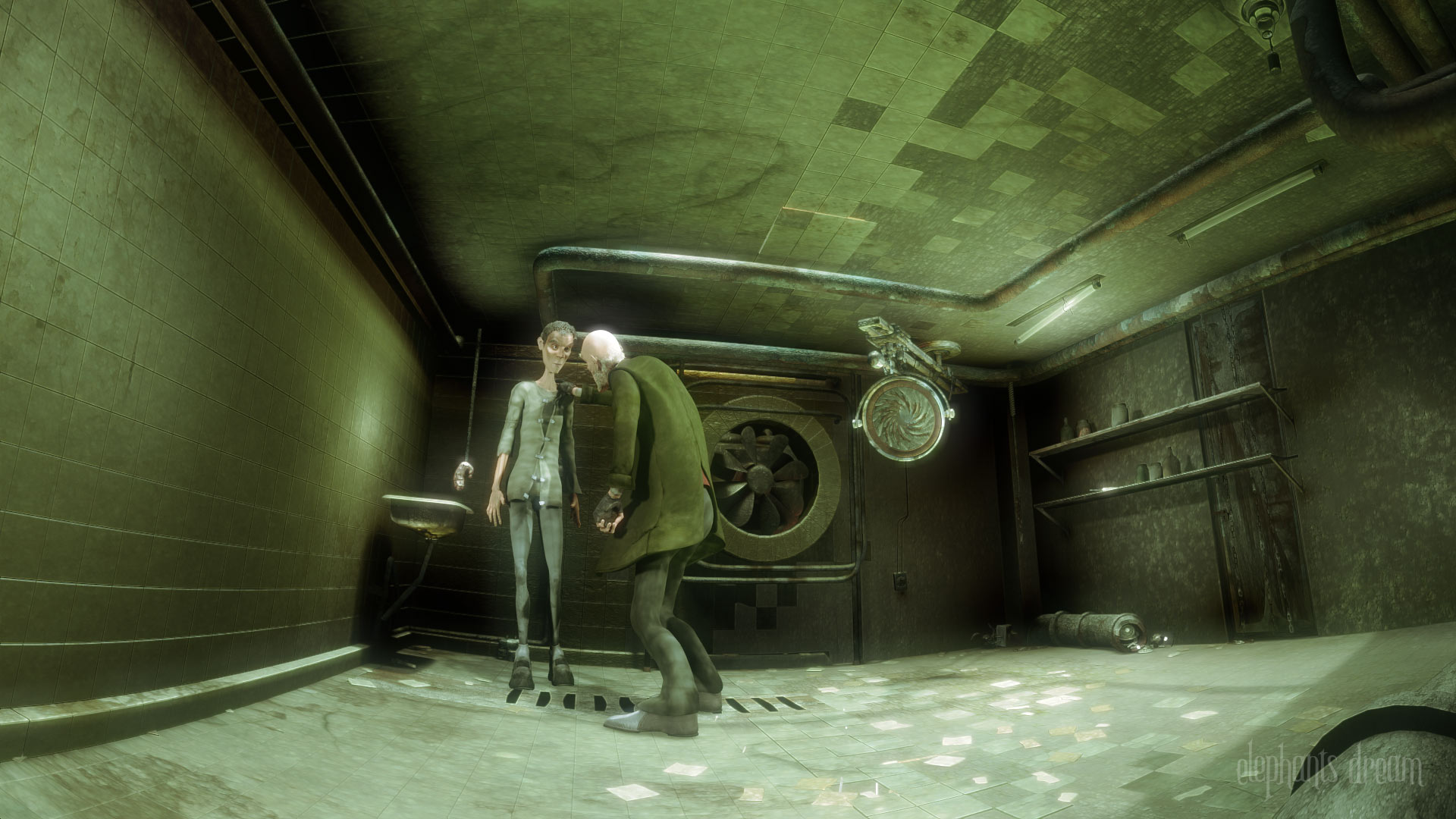
Elephants Dream


Elephants Dream is the world’s first open movie, made entirely with open source graphics software such as Blender, and with all production files freely available to use however you please, under a Creative Commons license.

http://www.elephantsdream.org

----

Big Buck Bunny


In May 2008, the Blender Foundation released their second open-movie project: “Big Buck Bunny,” a funny and furry 3D short about a giant rabbit who gets even with bullying rodents.

http://www.bigbuckbunny.org
read more...

mplayer - Pemutar film untuk linux​


mplayer - Pemutar film untuk linux​

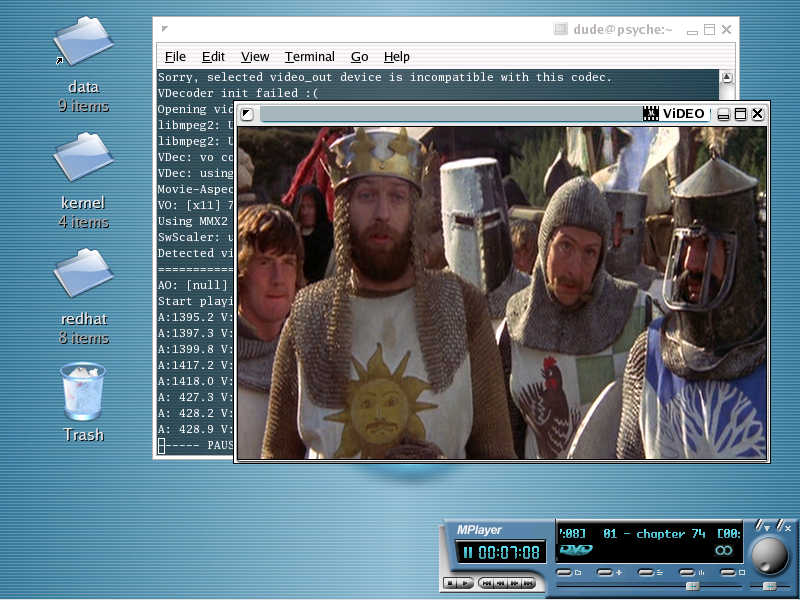
MPlayer is a movie player for LINUX (runs on many other Unices, and non-x86 CPUs, see the documentation). It plays most MPEG, VOB, AVI, VIVO, ASF/WMV, QT/MOV, FLI, NuppelVideo, yuv4mpeg, FILM, RoQ, and some RealMedia files, supported by many native, XAnim, and Win32 DLL codecs. You can watch VideoCD, SVCD, DVD, 3ivx, FLI, and even DivX movies too (and you don't need the avifile library at all!). The another big feature of mplayer is the wide range of supported output drivers. It works with X11, Xv, DGA, OpenGL, SVGAlib, fbdev, AAlib, but you can use SDL (and this way all drivers of SDL), VESA (on every VESA compatible card, even without X!), and some lowlevel card-specific drivers (for Matrox, 3Dfx and Radeon) too! Most of them supports software or hardware scaling, so you can enjoy movies in fullscreen. MPlayer supports displaying through some hardware MPEG decoder boards, such as the DVB and DXR3/Hollywood+! And what about the nice big antialiased shaded subtitles (9 supported types!!!) with european/ISO 8859-1,2 (hungarian, english, czech, etc), cyrillic, korean fonts, and OSD?

http://www.mplayerhq.hu
read more...

GNU Image Manipulation Program​ ( LINUX )


gimp - GNU Image Manipulation Program​

The GIMP is an image manipulation program suitable for photo retouching, image composition and image authoring. Many people find it extremely useful in creating logos and other graphics for web pages. The GIMP has many of the tools and filters you would expect to find in similar commercial offerings, and some interesting extras as well.

The GIMP provides a large image manipulation toolbox, including channel operations and layers, effects, sub-pixel imaging and anti-aliasing, and conversions, all with multi-level undo.

http://www.gimp.org
read more...

Program Program keren di LINUX


LMMS - Klon FruityLoops untuk Linux​

LMMS aims to be a free alternative to popular (but commercial and closed- source) programs like FruityLoops, Cubase and Logic giving you the ability of producing music with your computer by creating/synthesizing sounds, arranging samples, playing live with keyboard and much more...

LMMS combines the features of a tracker-/sequencer-program (pattern-/channel-/ sample-/song-/effect-management) and those of powerful synthesizers and samplers in a modern, user-friendly and easy to use graphical user-interface

http://lmms.sourceforge.net
read more...